

Classroom games have changed how teachers review material and how students practice it. Blooket is one of the most popular platforms for this, mixing quiz questions with arcade-style game modes. For anyone new to it, the best place to start is the BlooketDashboard, the control center where you create question sets, host games, track results, and manage your account. This guide covers what it is, how it works, and how to get the most from it.
What Is Blooket?
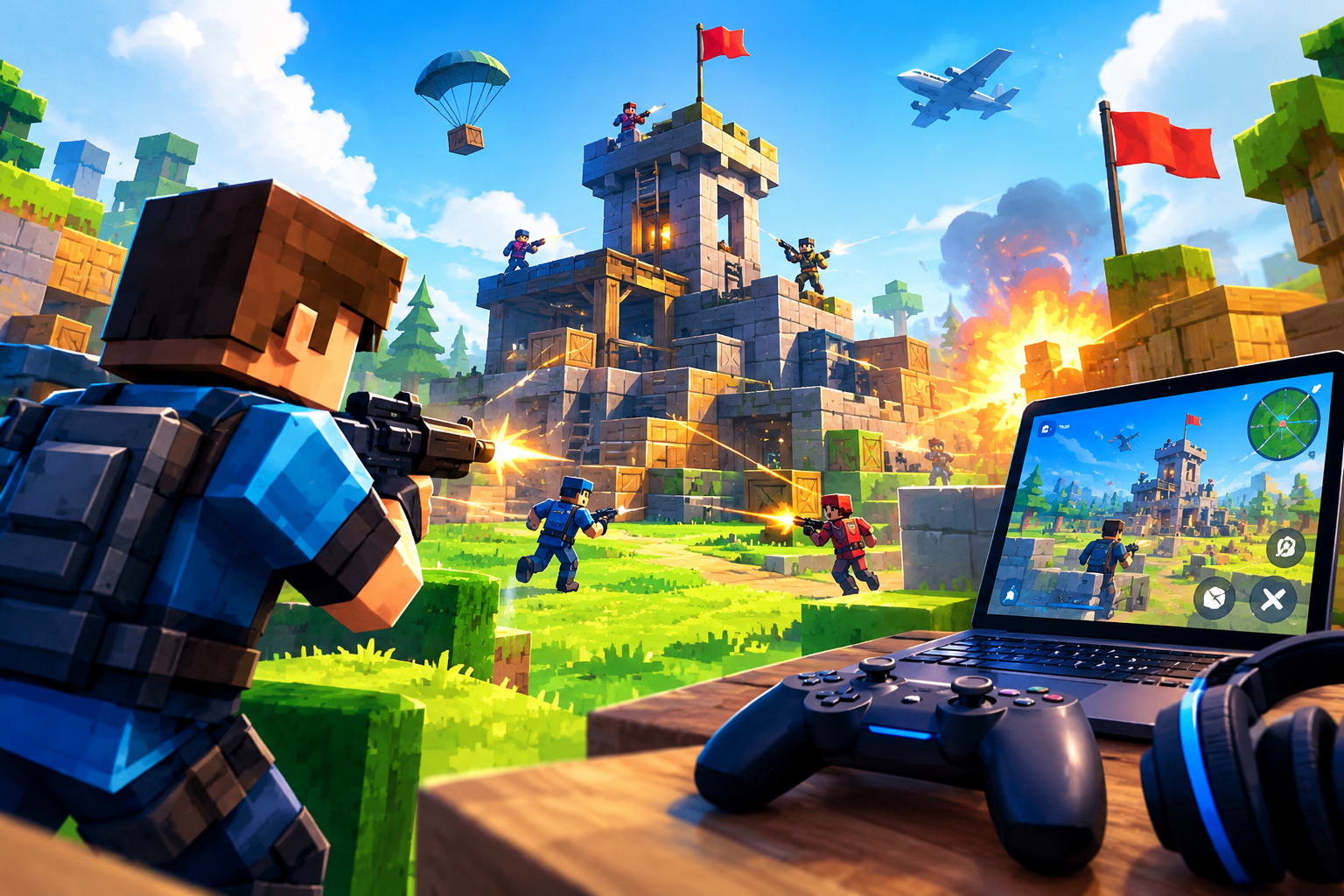
Blooket is a web-based learning platform built around question sets. A teacher or student creates a set of multiple-choice questions on any subject, then uses it to run a game. Instead of answering questions on a plain worksheet, players race, collect resources, defend towers, or run virtual businesses, and each correct answer moves them forward.
The platform works in any modern browser on laptops, Chromebooks, tablets, and phones, so there is nothing to install. Students join with a short game code and a nickname, which keeps setup quick even in a crowded classroom.
Understanding the BlooketDashboard
The BlooketDashboard is the home screen you see after logging in. Everything you do on the platform starts here: browsing games, building sets, launching sessions, and reviewing performance. Beginners often feel overwhelmed at first, but the layout is simple once you know the main areas.
Menu names and positions can change as the platform updates, but these sections have been the core of the experience:
- Discover: a library of public question sets made by other users, searchable by subject, grade level, or keyword.
- Create: the tool for building your own question sets from scratch.
- My Sets: your saved and favorited sets, so you can find them again quickly.
- Stats: reports on past games, showing how students performed and which questions caused trouble.
- Market and Blooks: the collectible side of the platform, where players use tokens to open packs of avatars called Blooks.
- Settings: account details, profile options, and subscription information.
Spend a few minutes clicking through each one before your first game. Nothing breaks by exploring.
Setting Up Your Account
Getting started is free. Go to the Blooket website, choose to sign up, and register with an email address or a connected account, such as Google. Teachers should choose the teacher account type when prompted, since that unlocks hosting options. Pick a clear username, because students will see it when you host.
Once you’re in, you’ll land on the dashboard. A free account is enough to create sets, host games, and view basic results. A paid tier called Blooket Plus exists, offering extra features, but beginners can safely ignore it until they know what they need.
Creating Your First Question Set
A good question set is the foundation of a good game. Here is a simple process:
- Open the Create section from the dashboard.
- Give your set a clear title and, if you like, a short description and cover image.
- Add questions one at a time. Each needs a question, a correct answer, and several incorrect options.
- Set a time limit per question. Twenty to thirty seconds suits most subjects, while math problems may need more.
- Save the set and preview it before using it live.
Keep questions short and unambiguous, and avoid trick wording that tests reading rather than knowledge. Aim for ten to twenty-five questions per set. Shorter sets can feel repetitive in a long game, while very long ones may drag.
If you’re short on time, search the Discover area first. Thousands of ready-made sets exist for common topics. Check any public set for accuracy before using it, since quality varies. You can often duplicate a set and edit it to match your lesson.
Choosing a Game Mode
Blooket offers many game modes. Each uses the same questions but wraps them in a different challenge. Some popular examples include:
- Gold Quest: players answer questions to earn gold and can sometimes steal from or swap with others.
- Tower Defense: correct answers fund defenses against waves of enemies.
- Cafe: players serve customers and upgrade their shop by answering correctly.
- Racing: a straightforward race where speed and accuracy move you forward.
Mode availability can change over time, so check the current list when hosting. For beginners, a simple mode like Racing or Gold Quest is a good start because the rules are easy to explain. Competitive modes suit review days, while cooperative or calmer modes suit students who find pressure stressful.
Hosting a Live Game
Once you have a set, hosting takes only a few steps:
- From the dashboard, open your set and select the option to host.
- Pick a game mode and adjust settings such as the time limit, number of players, or whether students play individually or in teams.
- Start the session. The platform generates a game ID.
- Share the code with your class. Students visit the join page, enter the code, and choose a nickname.
- When everyone has joined, begin the game.
During play, you can watch live standings and see who is answering correctly. When the game ends, a results screen appears, and you can review detailed reports afterward.
Homework Mode
Not every game has to happen in the classroom. Blooket also lets you assign a game for students to complete on their own before a deadline. This works well for homework, review before a test, or absent students who need to catch up. Students join through the assigned link or code and play at their own pace, and you can review their completion and accuracy afterward.
Using Stats to Improve Teaching
One of the most valuable parts of the platform is the reporting. After each game, the stats area shows how the class performed overall and how each student answered. Look closely at the questions with the lowest accuracy. They usually point to concepts that need re-teaching, or to questions that were worded poorly.
Over time, this data helps you adjust lesson plans. If most students miss the same question, spend extra time on that topic. If one student struggles across many sets, they may need one-on-one support.
Tips for Beginners
- Test before you teach. Run a short practice game yourself so you know how everything works.
- Set clear expectations. Explain the rules and your behavior expectations before the game starts, since the competitive energy can get loud.
- Mix up the modes. Rotating game styles keeps students interested.
- Keep sets focused. One topic per set makes reports easier to read.
- Involve students. Let them build sets for their classmates. Writing good questions is a strong way to learn.
- Check school policies. Make sure the platform fits your school’s technology and privacy rules.
Common Problems and Fixes
New users sometimes run into small obstacles. If students can’t join, double-check that they are entering the right code and using the correct join page. If a game seems laggy, ask students to close extra tabs or refresh the page. If a question appears wrong, edit the set and save it before the next session. Most problems are quickly solved by a refresh or a quick re-check of your settings.
Safety and Fair Play
Keep student privacy in mind. Encourage nicknames that don’t reveal personal information, and remind students to be respectful in the game. Blooket has content guidelines and moderation tools, but a teacher’s oversight is still the most effective safeguard. Avoid sharing your account login, and be careful of third-party tools or websites that promise hacks or cheats. They can put accounts at risk and spoil the experience for everyone.
Final Thoughts
Learning a new platform takes patience, but the payoff is worth it. Start small: create one short set, host one simple game, and review the results. As you grow comfortable, try new modes, assign homework games, and use the stats to guide your lessons. The BlooketDashboard puts every tool you need in one place, and with a little practice, it can turn review sessions into something students look forward to.
READ ALSO: https://endeavourarticle.com











Leave a Reply